

Text style panel
Selecting a text style in the table or the cards opens its panel from the right side. The panel shows the style with a preview and each of its properties, with precise values.
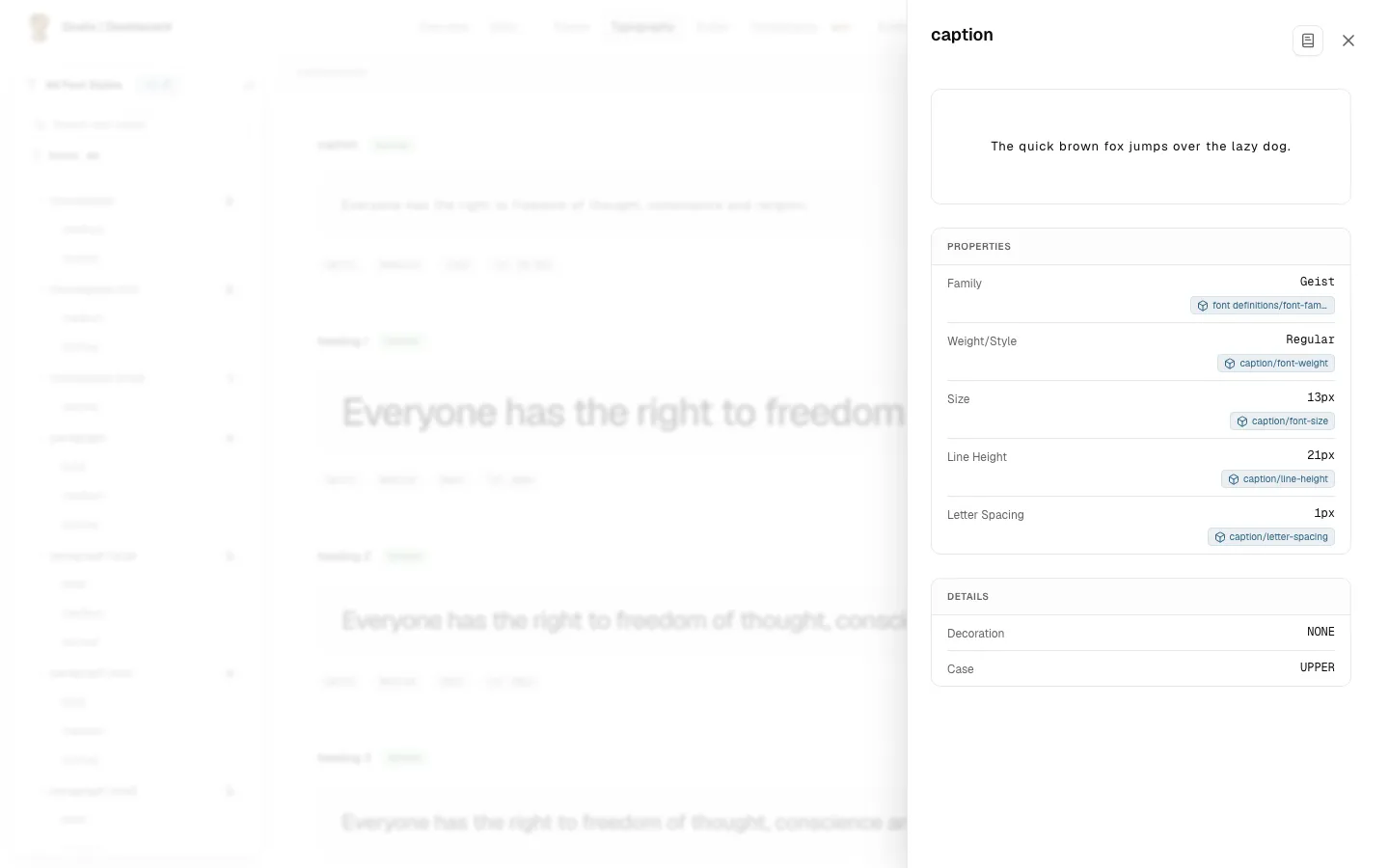
Header
The header holds the Docs button, which opens the style’s documentation. The same button appears in the header wherever the panel was opened from, whether from the list, a mention or a search result.
Preview
The top of the panel shows the style applied to a sample sentence. If the preview cannot load the style’s font, a Font Fallback warning appears on the sample.
Properties
The Properties group lists the values the style has. A property the style does not have is left out of the list.
- Family: the font, for example
Inter. - Weight/Style: the weight and style of the font, for example
Bold. - Size: the size in pixels.
- Line Height: the vertical space between lines. A fixed pixel value or a percentage, as the style stores it.
- Letter Spacing: the space between characters, as a percentage or in pixels, as the style stores it.
- Decoration: an underline or strikethrough, if the style has one.
- Case: an uppercase, lowercase or capitalized transform, if the style has one.
- Paragraph Spacing and Indent: shown when the style sets them.
Tokens bound to a property
When a property is bound to a design variable (a token), a chip sits under its value. The chip shows the token’s name. It has the same three states as the marks in the list:
- A token of this project: the name, in the token colour. Tapping it opens the token’s panel on top of this one. It opens the same way wherever this panel was opened from.
- Token not in Grails: a grey dashed chip. The token is in a file or library this project has not synced. Tapping it tells you why. Sync the file or library that holds the token into this project to see it.
- Token in two files: the same grey dashed chip, when two other Figma files in the project define the token and the style’s own file does not. Grails cannot tell which one is meant. Tapping it tells you why.
The chip is a button, so you can reach it with the keyboard and open it with Enter or Space.
For the full explanation of the three states and how Grails looks up a token, see Design: token marks.