
Overview
Introduction
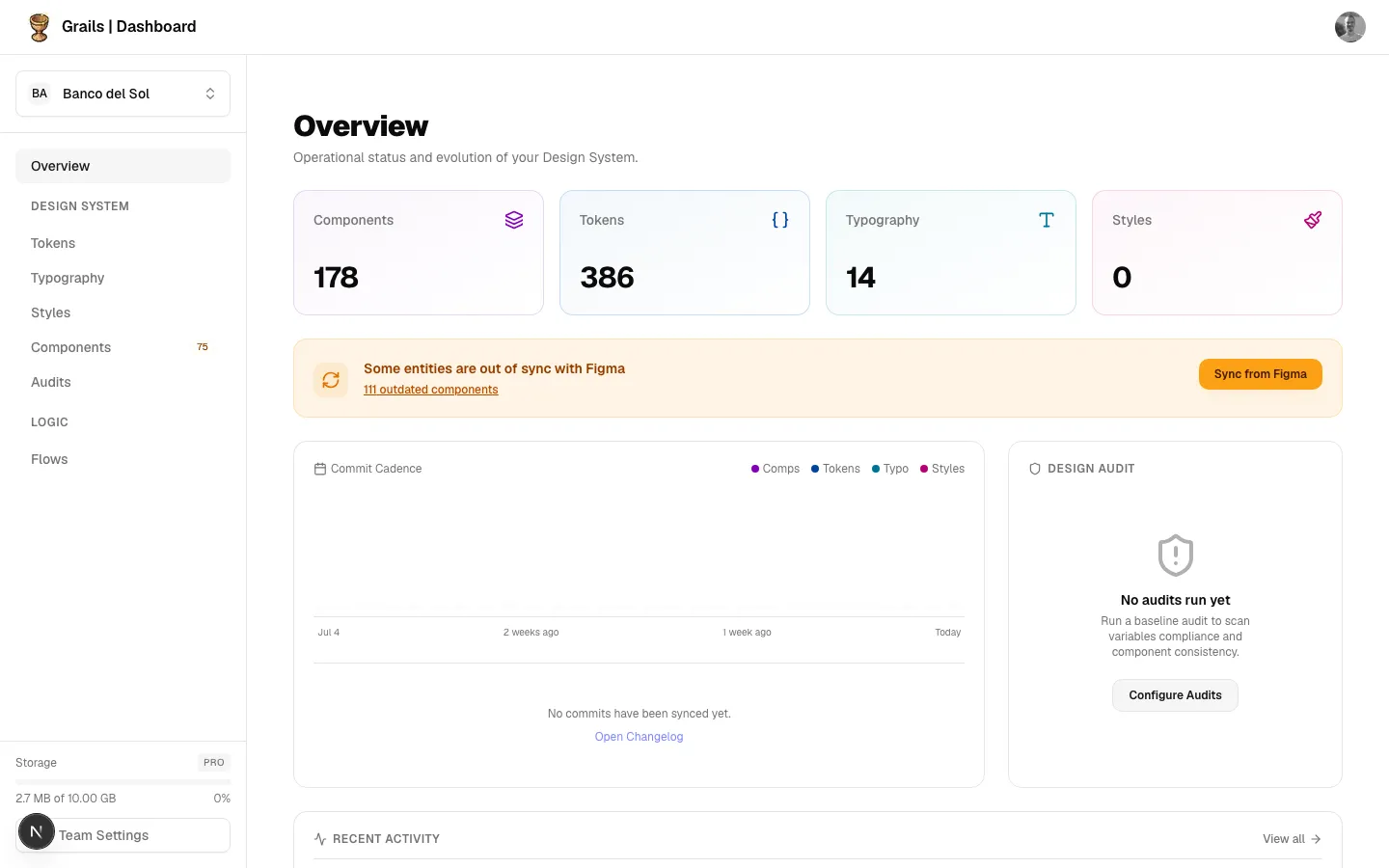
The Overview is your project’s home screen. It answers four questions at a glance: how big is the design system, is anything out of sync with Figma, how healthy is it, and what has the team been doing. Every card is a doorway — most of them open a panel with the full detail behind the number.
Layout
The page is a stack of cards, top to bottom:
- Design System counters — one card per section, with the current version.
- Sync Alert — appears only when something drifted out of sync.
- Latest Commit + Commit Cadence (left, wide) and Audit Score (right).
- Recent Activity.
Design System counters
Four cards across the top: Components, Tokens, Typography and Styles. Each shows the number of entities currently in the vault and, where applicable, the section’s current version badge (v3, v12…).
The version comes from the section’s latest snapshot, so it increments when that part of the design system actually changed — not on every sync.
Clicking a card navigates to that section.
Sync Alert
This card only exists when there is something to act on. It appears when entities have drifted: Figma changed but Grails hasn’t been updated, or an entity was deleted in Figma and still exists in the vault.
It lists what drifted, broken down by section, with each count as a link that takes you to that section pre-filtered to the affected entities. The Sync now button opens the sync flow.

Latest Commit
Shows the most recent design system sync: who ran it, when, its message, and badges for what it contained.
Each badge merges two facts: the entity count in that commit and the section version it produced. The badge label always names the entity type — the color tells you the operation, so a removal shows the same “Components” label in a different color rather than renaming itself.
Two ways in:
- Clicking the commit opens DS Version Detail for that commit.
- View full changelog / Open Changelog opens the DS Changelog panel with the full commit history.
Commit Cadence chart
Inside the Latest Commit card, the cadence chart shows the last 4 weeks of design system activity as a daily bar chart — one bar per day, ending today.
Bar height is the total number of entities touched that day, not the number of commits. A single commit that synced 200 components produces a taller bar than five commits of two entities each.
Hovering a day shows a tooltip broken down by entity type — Components, Tokens, Typography, Styles — each in its own color, using the same palette as the rest of the platform. Days with nothing show “No activity”.
The axis is labelled at four points: the start of the window, 2 weeks ago, 1 week ago, and today.
DS Changelog panel
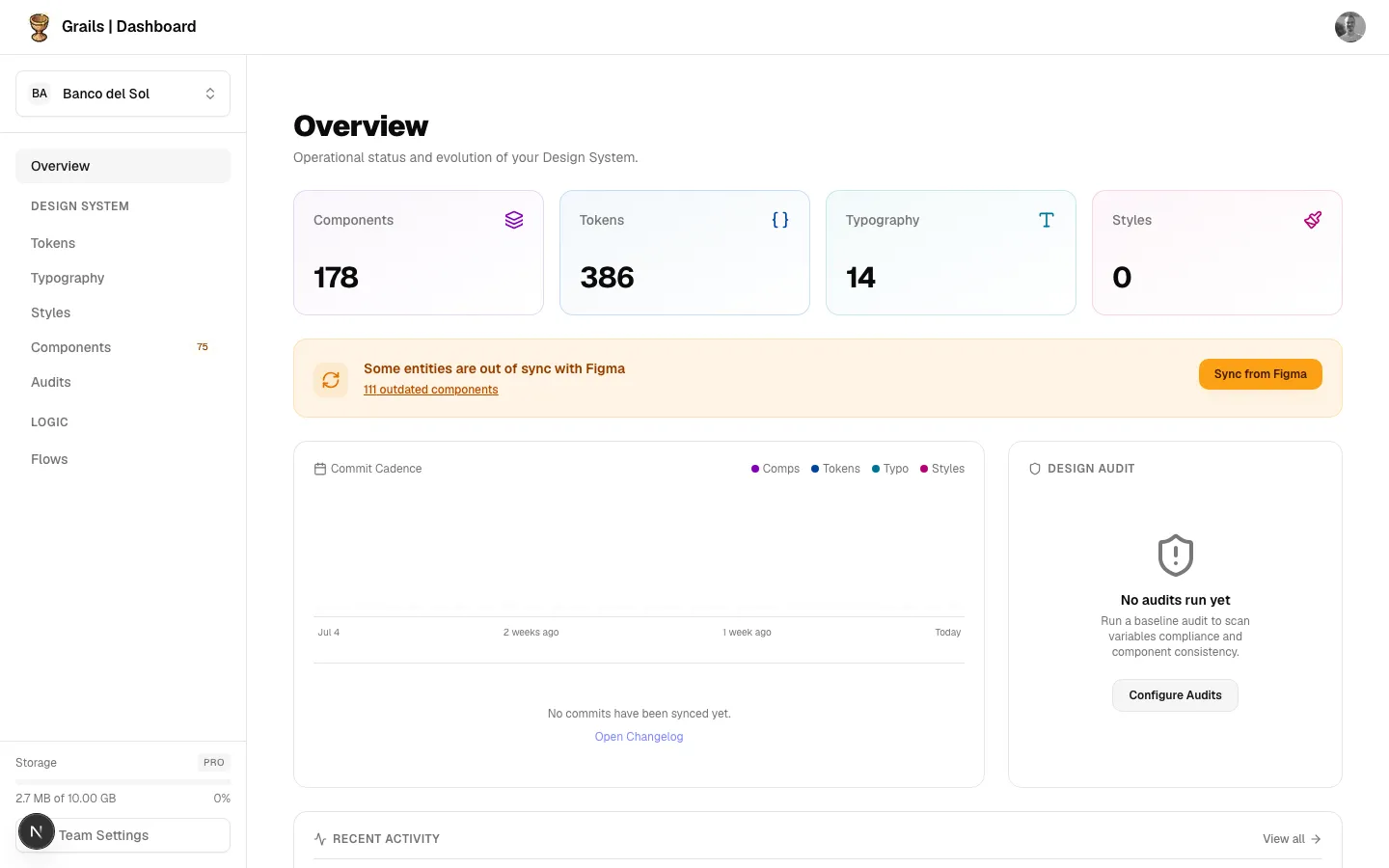
The full, paginated history of design system commits. Each entry is a card showing the author, date, message, operation and the same merged section badges as the Latest Commit card.
Clicking any commit opens its DS Version Detail.
DS Version Detail panel
The complete record of one sync. This is where “what actually changed” lives.
- Header — author, date, operation and commit message.
- Section snapshots — for each affected section (tokens, typography, styles), the version produced and a semantic diff: what was added, removed and modified.
- Component list — every component in the commit with its status: Added, Modified, No Changes or Removed.
- Commit ID — at the foot, with a copy button, for support or debugging.
Clicking a component marked Modified opens its version diff for that specific commit, showing what changed in that component at that point in time — not its current live state.
Audit Score card
Shows the score from the most recent completed audit as a ring, 0–100, colour-coded:
| Range | Colour | Reading |
|---|---|---|
| 70–100 | Green | Healthy |
| 40–69 | Amber | Needs attention |
| 0–39 | Red | Critical |
Below the ring: the audit template used and when it ran. View details goes to the Design Audits section.
If no audit has ever run, the card invites you to run a baseline audit instead.
Recent Activity card
The last five things that happened in the team — who, what, when. It is a summary: no secondary detail, no filtering.
View all opens the full Activity panel.
Activity panel
The complete, paginated history of everything that happened in your team.
What each row shows
- Actor — name and avatar. System events, such as a Figma library publish, show a Figma logo instead of a person.
- Description — what happened, with the important part highlighted.
- Detail line — names of the affected entities, when applicable.
- Timestamp — how long ago.
Consecutive events of the same type, by the same person, within ten minutes merge into a single row so a busy sync does not flood the feed.
One sync, one row
A design system sync produces a single entry, no matter how many components, variables and styles it contained. That row is clickable and opens the DS Version Detail panel for that commit.
What gets recorded
| Area | Events |
|---|---|
| Design system syncs | Plugin syncs, removals and re-syncs; Figma library publishes |
| Vault contents | Components, collections and styles removed; token groups created or deleted; variable values edited; assets marked or unmarked |
| Component history | Version history cleared |
| Documentation | Documentation added or updated on any entity |
| Flows | Flows created, updated, imported or deleted |
| Team | Members invited, joined, removed or leaving; role changes; invitations revoked or declined; team created or renamed |
| Security | Figma access token rotated; Figma personal access token added, updated or removed; library webhook enabled or disabled |
| Plan | Plan changes applied to the team |
| Audits | Audits completed or failed; audit templates created, updated or deleted |
Filtering
Three independent controls that combine:
- Search — free text over actor names and event details.
- Filter by type — only lists event types actually present in the loaded history, grouped by area.
- Filter by author — narrows to one person. System and webhook events group under System.
Available Actions
| Action | Roles | Description |
|---|---|---|
| Open a section | Admin, Editor, Viewer | Click a counter card to go to Components, Tokens, Typography or Styles. |
| Sync now | Admin, Editor | Opens the sync flow from the Sync Alert. |
| Open commit detail | Admin, Editor, Viewer | Opens DS Version Detail for a commit. |
| Open changelog | Admin, Editor, Viewer | Opens the full commit history panel. |
| Open component version diff | Admin, Editor, Viewer | Click a Modified component inside a commit. |
| View audit details | Admin, Editor, Viewer | Goes to the Design Audits section. |
| View all activity | Admin, Editor, Viewer | Opens the full Activity panel. |
| Search / filter activity | Admin, Editor, Viewer | By text, type or author. |
| Load older activity | Admin, Editor, Viewer | Fetches the previous page of history. |
Permission Notes
All roles see the whole Overview, including the full activity history and every commit. The Overview is read-only by nature — the only action that changes anything is Sync now, which requires Admin or Editor.
Everything is scoped to your current team and project. You never see another team’s data, regardless of role.