

Variables & Tokens
The Tokens section holds every design token your team works with: the variables synced from Figma, the tokens your component library’s repository publishes, and how the two compare. It is one page with three sides, and you pick the side in the switch at the top of the table.
The head
Above the table are the page’s name, how many tokens the side you are looking at shows, and the Design / Code / Diff switch.
- Tapping a side lights it up straight away. The page shows a loading skeleton with its head until the new side has arrived.
- A click with a modifier key, or with a button other than the main one, opens the side in a new tab, as a link does.
- A link keeps the side. Its address carries the side, so a link someone shares opens the same side you were looking at.
The three sides
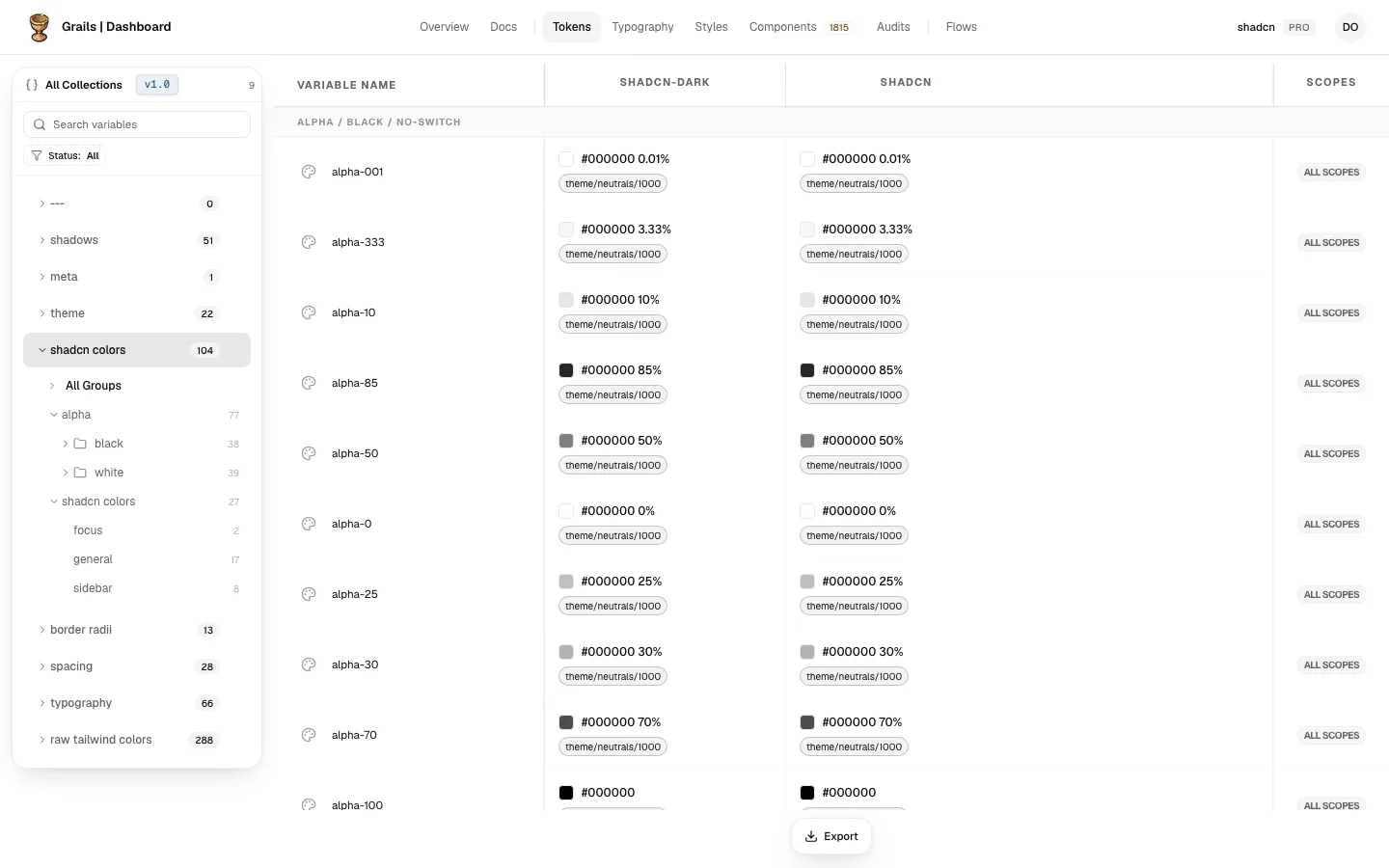
- Design shows the variables synced from Figma: their collections, modes, values and aliases, with the Scopes column, the editing mode and the Status filter. See Design.
- Code shows the tokens your repository uploaded with
grails-cli sync, by name, in the same table. Admins and editors can edit them, on a plan with Code Sync: each change waits until a developer brings it into the repository. See Code. - Diff sets the repository’s tokens against the Figma ones, pair by pair, and groups what differs. See Diff.
Editing the Figma side is covered in Editing on the Design side. Editing code tokens is covered in Code editing.
The left panel
The left panel lists the collections synced from Figma, and on the Design side it is also where you narrow what you see.
- Search variables at the top filters by variable name and by value, across every mode, as you type.
- Status keeps the collections in one sync state: All, Synced, Outdated or Deleted in Figma. When the filter leaves no collection, the panel says so and offers Clear search and filters.
- On a wide screen the panel floats over the edge of the page as a card, or docks to the side. Choose which in User Settings → Appearance → Side panels. On a phone, the button at the bottom left opens it over the page, and picking a group closes it again.
The Code and Diff sides have their own left panels; the Status filter and the Scopes column belong to the Design side only.
The bar at the foot
- Design: Edit, which becomes Done while you are editing, and the help beside it, for admins and editors. Export, for everyone.
- Code: Export only.
- Diff: the colour threshold and the naming rules. Admins and editors can change them; everyone else can read them.
Who can do what
| Role | What they can do in Tokens |
|---|---|
| Viewer | Read every side, search and filter, see the batch of queued changes, export. Cannot change anything. |
| Editor | Everything a viewer can, plus editing Figma values and scopes (each change is queued), deciding pending matches, and changing the Diff’s rules and threshold. |
| Admin | The same as an editor. |
Editing needs a plan that includes token editing; without one, the Edit button does not appear for anyone. Export does not depend on the plan or the role.
Pending matches, the token panel and Export
- Pending matches: pairs of tokens and collections that Grails found are the same one kept in two places, waiting for someone to decide.
- The token panel: the full value of a token in every mode, its alias chain and, if it is matched, its code counterpart.
- Export: download the tokens as a DTCG
.zip, from the Design side or from the Code side.
If no collections have been synced yet, the table shows an empty state with a prompt to sync from the Figma plugin.