

Fixed values and aliases
A code token holds one of two things.
- A fixed value is written in the token itself: a colour, a size, a number. The token says what it is.
- An alias points at another token. The token takes its value from that one, and follows it: when the other token changes in the repository, the alias changes with it.
For the editor of each value type, see Editing a value and Colours and units.
Set a fixed value
- Open the dialog of the token with its pencil, and stay on the Value tab. The dialog opens there for a token that holds a value.
- Change the value in the editor.
- Click Queue change. You can also press Enter in a value field.
The change waits in the queue of the repository, like any other change. See Pending changes.
If the value you write is the same as the repository’s, nothing is queued, and the dialog says so.
Set an alias
Open the Alias tab of the token’s dialog. It reads its candidates the first time you open it.
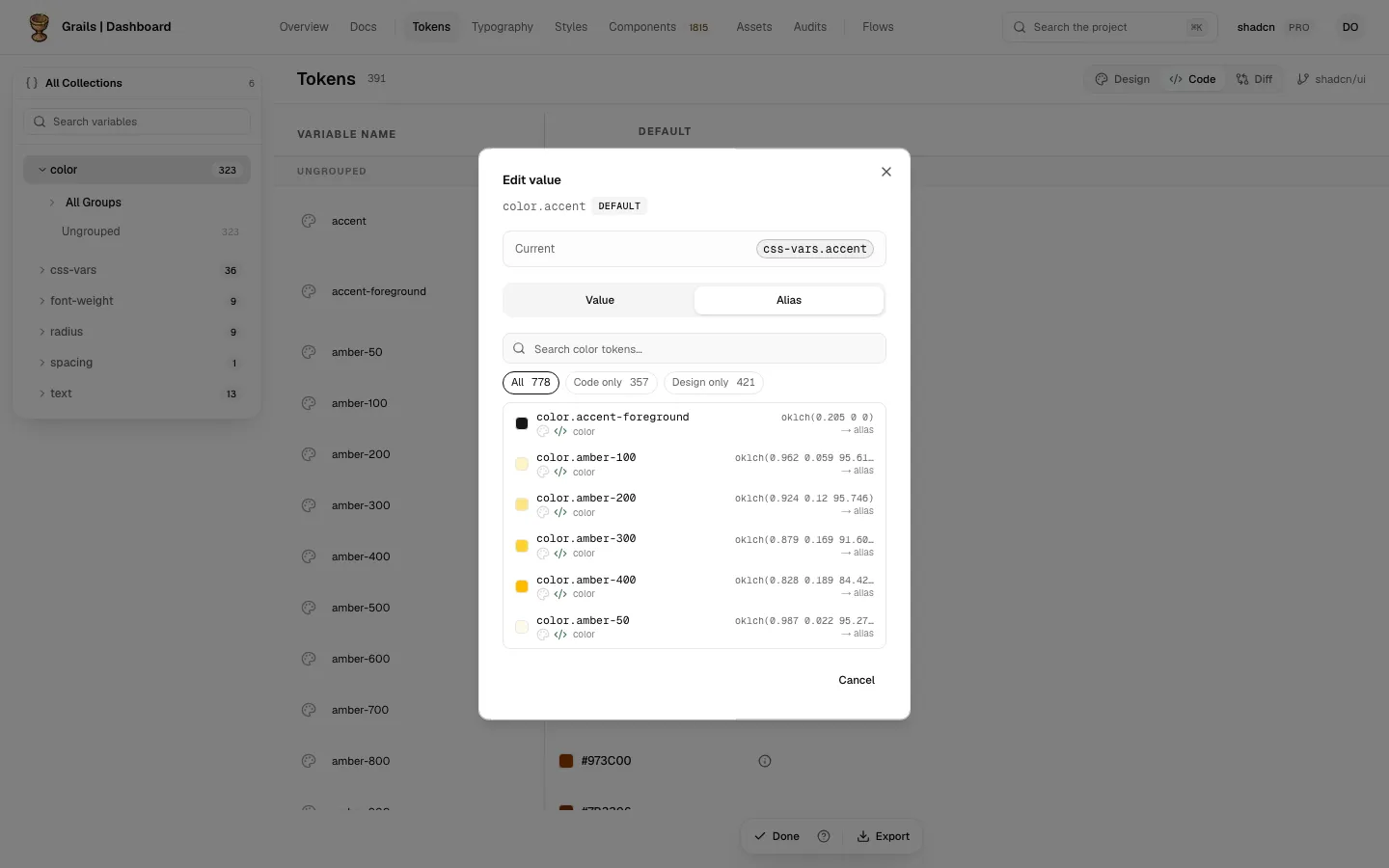
The candidates
The candidates are in three groups:
- In design and code: tokens that have a counterpart on both sides, in Figma and in the repository.
- Code only: tokens that exist in the repository only.
- Design only: Figma variables that have no token in the repository yet.
A search field sits on top of the list. Filters under it show one group at a time. The token itself is never a candidate, and the token it points at now is marked current.
Each row shows its value, its collection and its source marks, and says what choosing it will do:
- → alias means the token will point at a token of your repository. The code stores the reference.
- → copies value means the token will take a copy of a Figma variable’s value. It is used when the variable has no token in the code yet. Later changes in Figma will not follow, because the value is copied, not linked.
A plain alias takes one click
Choosing a token from the repository, a row marked → alias, queues the change at once.
Two choices ask for a second click
Two kinds of choice show a warning first. The row then shows the warning with two buttons, Continue and Cancel. Choose Continue to queue the change, or Cancel to leave it.
-
An alias to a colour in another colour space. The warning reads, with the names filled in:
color.brand is written in srgb and this token in oklch. The alias is allowed: this token will take color.brand’s colour, in its space.
The alias works. The token takes the colour of the target, converted into its own space.
-
A copied value. The warning reads:
This Figma variable has no token in code yet, so its value is copied: later changes in Figma won’t follow.
Choosing a Figma variable
A design row is a Figma variable. Grails decides what happens when you choose it:
- If the variable already has a token in the code, the token is linked to it. It is an alias, and the toast says so: “Linked to color.brand: color.brand already has a token in code.”
- If it has no token in the code yet, its value is copied into the token. The toast says where the value came from: “Value copied from color.brand (Light).” The value does not follow later changes in Figma.
When the value had to be adjusted to fit the token’s colour space, the toast says so too: “It was adjusted to the nearest colour this token’s space can hold.”
Grails picks the Figma mode that goes with the token’s mode: the paired one, or else the one with the same name, or else the default.
Turn an alias back into a fixed value
Open the Value tab. It starts from the value the alias resolves to: Grails follows the alias through the repository, and the editor starts from the value at the end of the chain.
Change the value if you want a different one, then click Queue change. The queued value replaces the alias.
If Grails cannot follow the chain, because a token it points at is missing, there is no value to start from. Check the value before you queue it.
The dialog opens on the Alias tab when the token points at another token, whether that is queued or in the repository. Otherwise it opens on the Value tab. You can switch tabs at any time.
How the cell and the dialog show each
In the table cell, a fixed value shows its value. An alias shows a chip with the path of the token it points at. The chip opens a popover with the full chain of tokens the value goes through.
In the dialog, the Current line shows the repository’s value. For an alias, it shows the path of the token it points at, not its value. When a change is queued, the line reads Current → queued, with the repository’s value struck out, an arrow and the queued value. A queued alias shows its path after the arrow.
Parts of a composite that point at a token
A shadow, a border, a gradient or a transition has parts that can take their value from a token of the right type. A shadow’s colour can point at a colour token, and its blur at a dimension token.
Each such part has a link icon beside its label. Click it to switch the part to a list of the repository’s tokens of that type, and pick one. The part then shows that token, and the code stores the reference, not a copied value.
- The link icon is drawn only when the repository has a token of that type. A part with no matching token has no link icon.
- Turning a part back to a value: click the icon again. Its tooltip reads “Use a value”.
When a part comes back from a token to a value, it starts with a value of its own, not with the value of the token it pointed at. Check it and set it before you queue the change.
Related
- Editing a value for each type’s editor.
- Colours and units for what happens to a colour or a size when you change it.
- Pending changes for what waits, and how to discard it.