

Version Management
Introduction
The Version Management feature in Grails allows you to track changes to your Figma components over time. Every time a component is synced using the “Save as New Version” option, a snapshot of its properties, variants, and tokens is securely stored in your repository. This gives your team a clear chronological trail of design evolution and a safety net against accidental overrides.
Overview
Version control is tightly integrated into the Component details workflow. When changes are published in Figma, you can review the differences and decide how to integrate them into Grails.
- Component Drawer: The central place to view a component’s current version and sync status.
- Sync Alerts: Visual indicators that let you know when the Grails version is outdated compared to the active Figma library.
- Component History: A dedicated drawer showing the chronological timeline of all saved snapshots for a single component.
Resolving Sync Conflicts
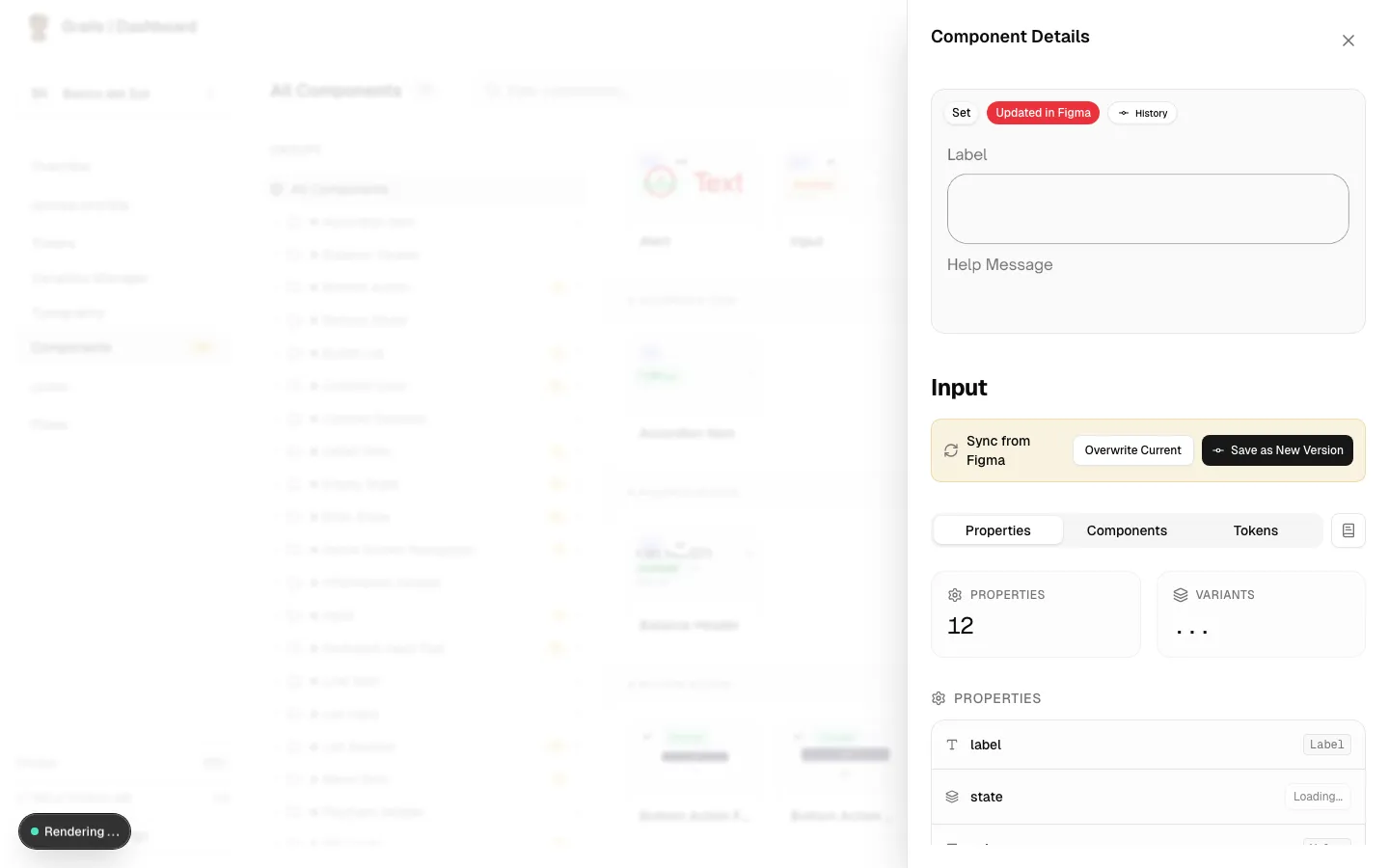
When you inspect an outdated component, Grails displays a warning banner at the top of the Component Drawer indicating that a newer version is available in Figma.
Sync Options
When clicking the Sync button on the alert banner, you have two choices for handling the incoming changes:
- Update Current Version: Overwrites the existing definition of the component in Grails with the new data from Figma. The historical timeline remains unchanged. This is useful for minor typo fixes or non-breaking adjustments.
- Save as New Version: Preserves the old state as a historical snapshot and advances the component to a new version number (e.g., from v1 to v2). This creates a permanent record of the change, which is recommended for visual redesigns or structural property modifications.
Additionally, you can Unsync the component to detach it from Figma entirely, converting it into a local-only entity within Grails, or Re-link it if you need to map it to a newly created component in Figma.
The Version History Drawer
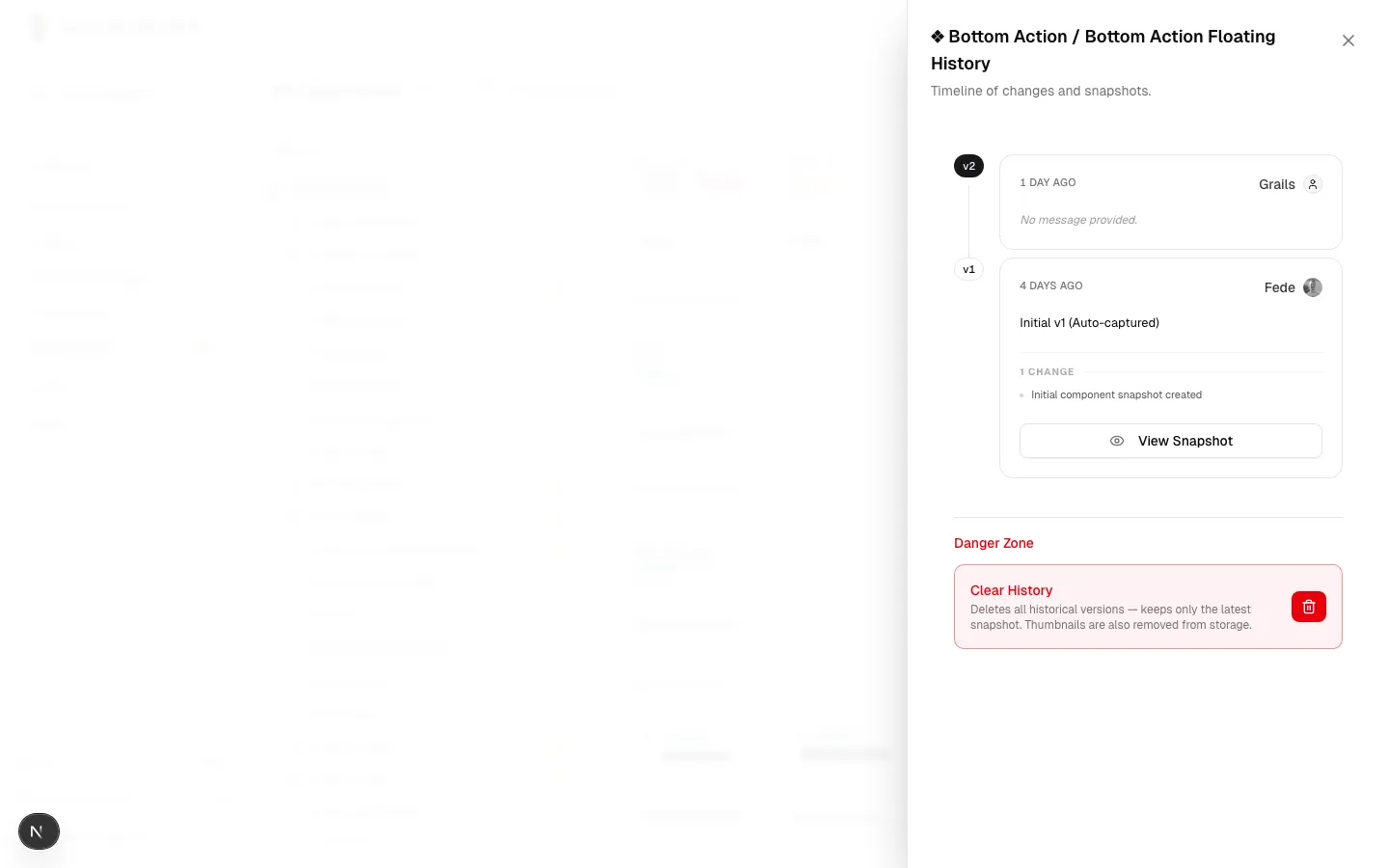
To review the past changes of a component, click the History button located in the top-right corner of the Component Drawer. This opens the Version History timeline.
History Details
Each entry in the timeline represents a specific snapshot and includes:
- Version Number: An incremental badge (v1, v2, v3, etc.) identifying the snapshot.
- Author & Time: Who initiated the sync and exactly when it happened.
- Commit Message: The description provided by the designer during the sync process.
- Diff Summary: An automated breakdown highlighting exactly what changed in the component’s structure between the previous version and this one (e.g., “Added variant State=Hover”, “Removed property Icon”).
Viewing Past Snapshots
If you need to investigate a previous state in detail, you can click View Snapshot on any historical entry. This opens a specialized view of the Component Drawer in Historical Mode.
While viewing a snapshot, you can browse all properties, sub-components, and token relationships exactly as they existed at that point in time. Note that historical snapshots are read-only and cannot be synced or modified.
Clearing History
Over time, components with many revisions might clutter the history view or consume unnecessary database space. If you want to tidy up the timeline:
- Scroll to the bottom of the Version History Drawer to find the Danger Zone.
- Click the Clear History button.
- This action is permanent. It deletes all past snapshots and their associated thumbnails, leaving only the single, most recent active version (which essentially becomes v1 again).
Permission Notes
All roles (Admin, Editor, Viewer) can view the version timeline and browse historical snapshots. However, only Admins and Editors have permission to execute syncs, create new versions, or clear a component’s history.