Team Settings
Introduction
The Team Settings panel is the central hub for administrating your Grails team. Here, you can invite colleagues, manage access roles, monitor your storage capacity, and configure essential integrations like the Figma Plugin to ensure a smooth design-to-code workflow.
Depending on your role (Admin, Editor, or Viewer), you will have access to different tabs and actions within this panel.
Overview
The panel is organized into three main tabs:
- Settings (Admins only): Change the team name, view storage limits, and delete the team.
- Members: Invite new people, manage pending invitations, and update member roles.
- Integrations (Admins and Editors): Manage Figma tokens necessary for the plugin to sync variables.
Settings Tab
This section is restricted to Team Admins and provides high-level control over the team’s lifecycle:
- Team Name: Update the display name of your team.
- Storage & Limits: A visual breakdown of your current storage capacity. It displays segments (Components, Flows, and Database) to help you understand how much space your synced tokens and screens consume against your plan’s limit.
- Danger Zone: Allows you to permanently delete the team. Use this with caution, as it will erase all projects, synced components, and documentation.
Members Tab
Collaboration requires the right people. From the Members tab, you can control who has access to your team’s vault:
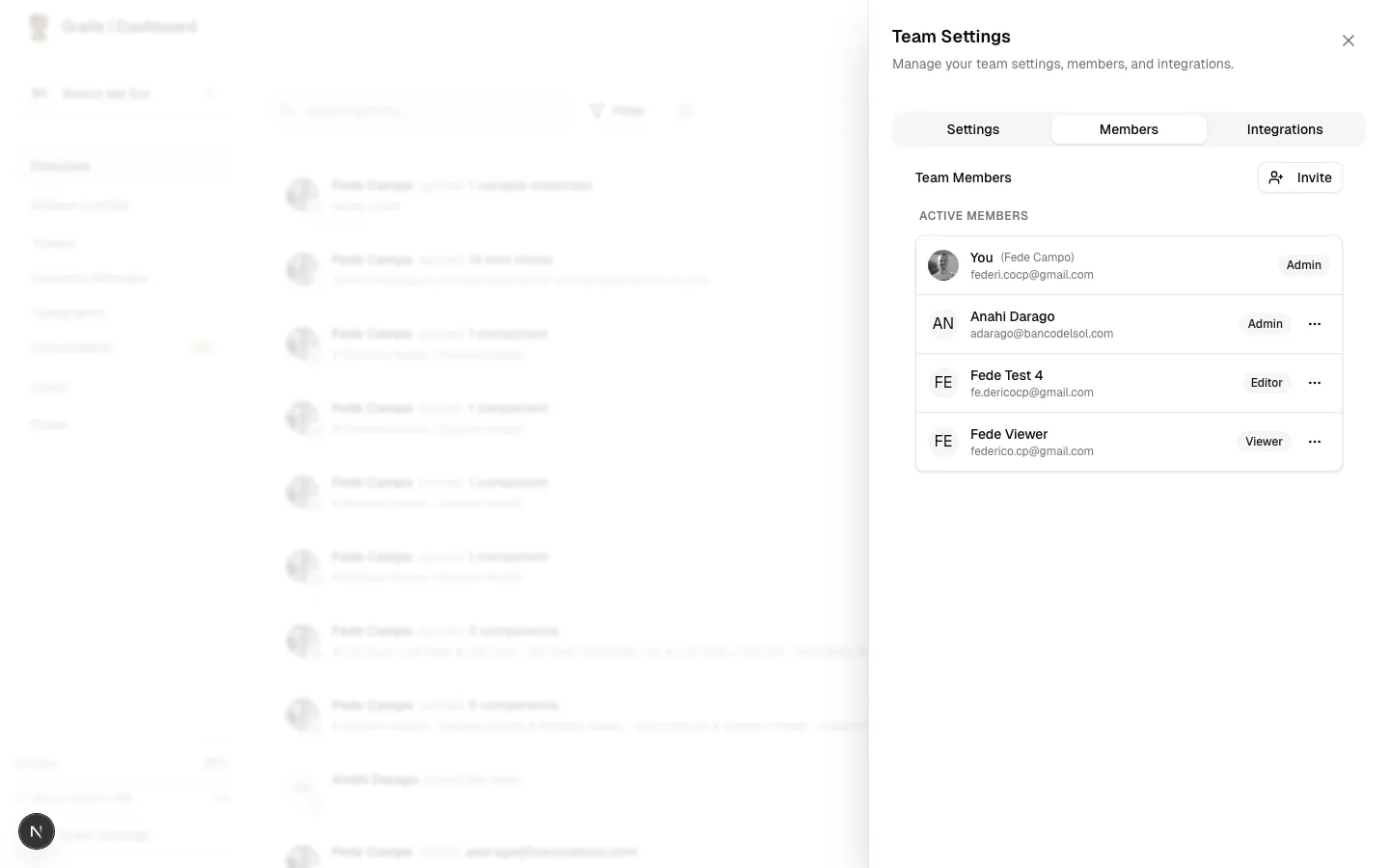
Active Members
See everyone currently in the team along with their roles:
- Admin: Full access, including billing and destructive actions.
- Editor: Can sync from Figma, create flows, and edit variables.
- Viewer: Read-only access to browse components and documentation.
Admins can use the options menu (•••) next to any member to change their role or remove them from the team.
Pending Invitations
View all sent invitations that haven’t been accepted yet. You can see the email, assigned role, and expiration date. If an invitation gets lost, you can resend it or revoke it entirely.
Integrations Tab
Grails relies on an active connection to your Figma workspace. In this tab, you configure the necessary tokens for syncing:
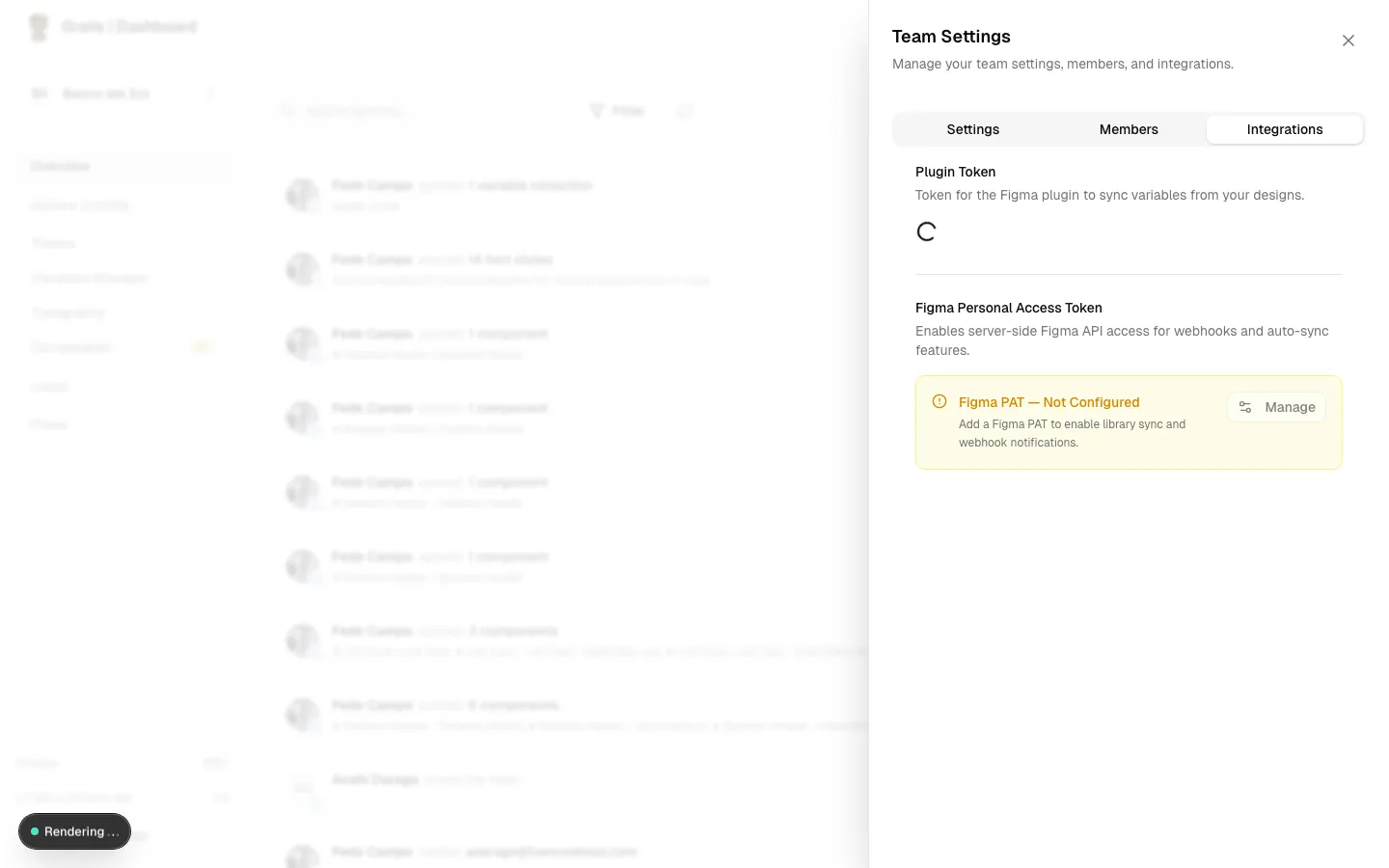
Plugin Token
This is the authentication token you must paste into the Grails Figma Plugin. It securely links your Figma file directly to this specific team project in Grails. Without this token, the plugin cannot export components or variables to your vault.
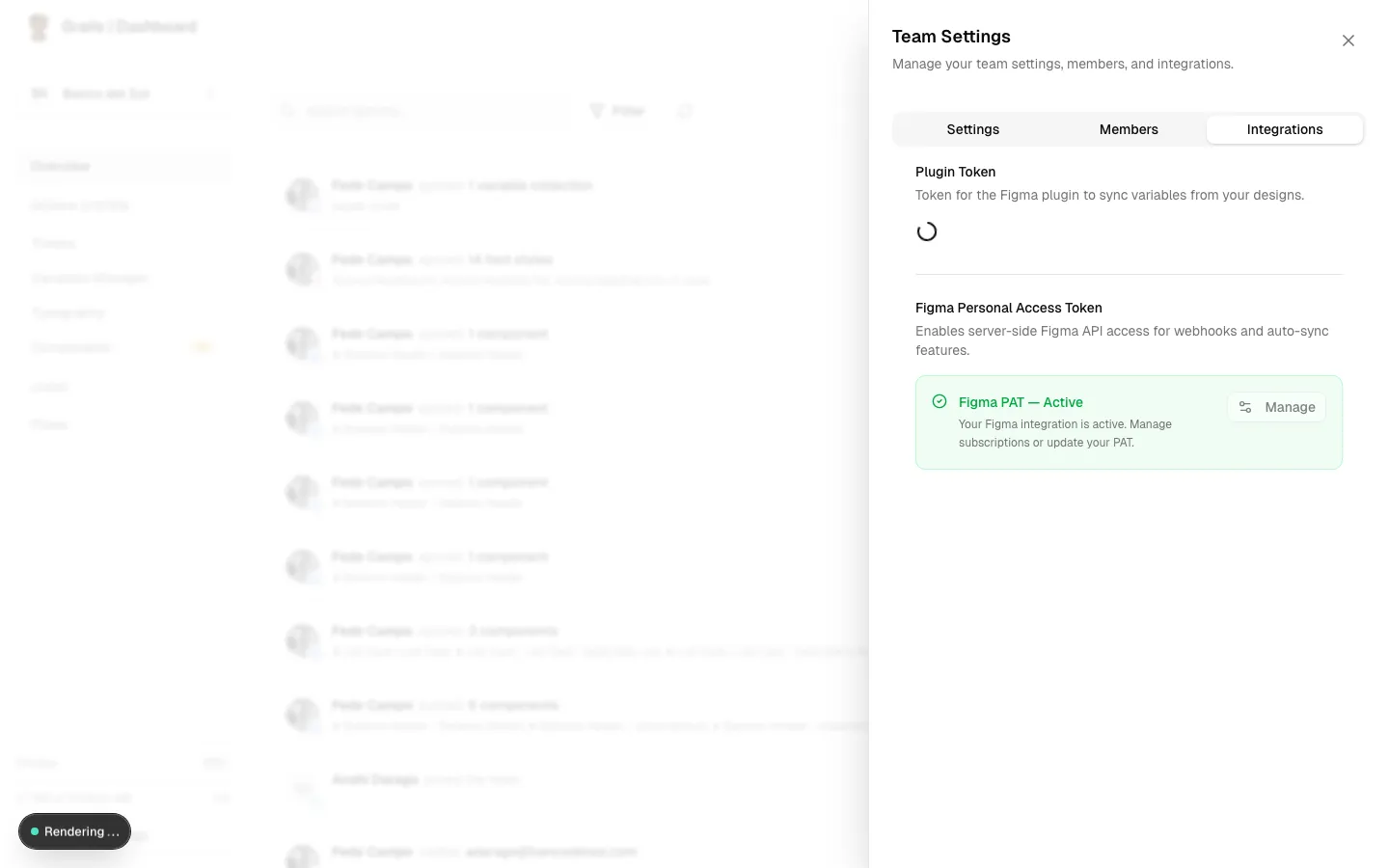
Figma Personal Access Token (PAT)
Setting up a Figma Personal Access Token enables advanced automated synchronization features directly from the web platform.
What is it for? The PAT allows Grails server to securely communicate with the Figma API on your behalf. It is required if you want Grails to automatically subscribe to Figma library updates (webhooks). When you publish changes in Figma, Grails will be notified and can automatically sync the updates in the background.
How to configure it:
- Click Manage PAT in the Integrations tab. (Only Team Admins can perform this action).
- Follow the link to your Figma account settings to generate a new Personal Access Token.
- Paste the token into the input field and click Validate & Save.
- Once validated, Grails will fetch all the Figma Teams you have access to.
- Toggle the switch next to any Figma Team to subscribe to its library updates.